Loop devices
By accessing loop viewing you can access each of the devices the loop is composed of and set the parameters.


If you are using the software in “Demo” mode you can also build the loop by means of the appropriate buttons.
|
|
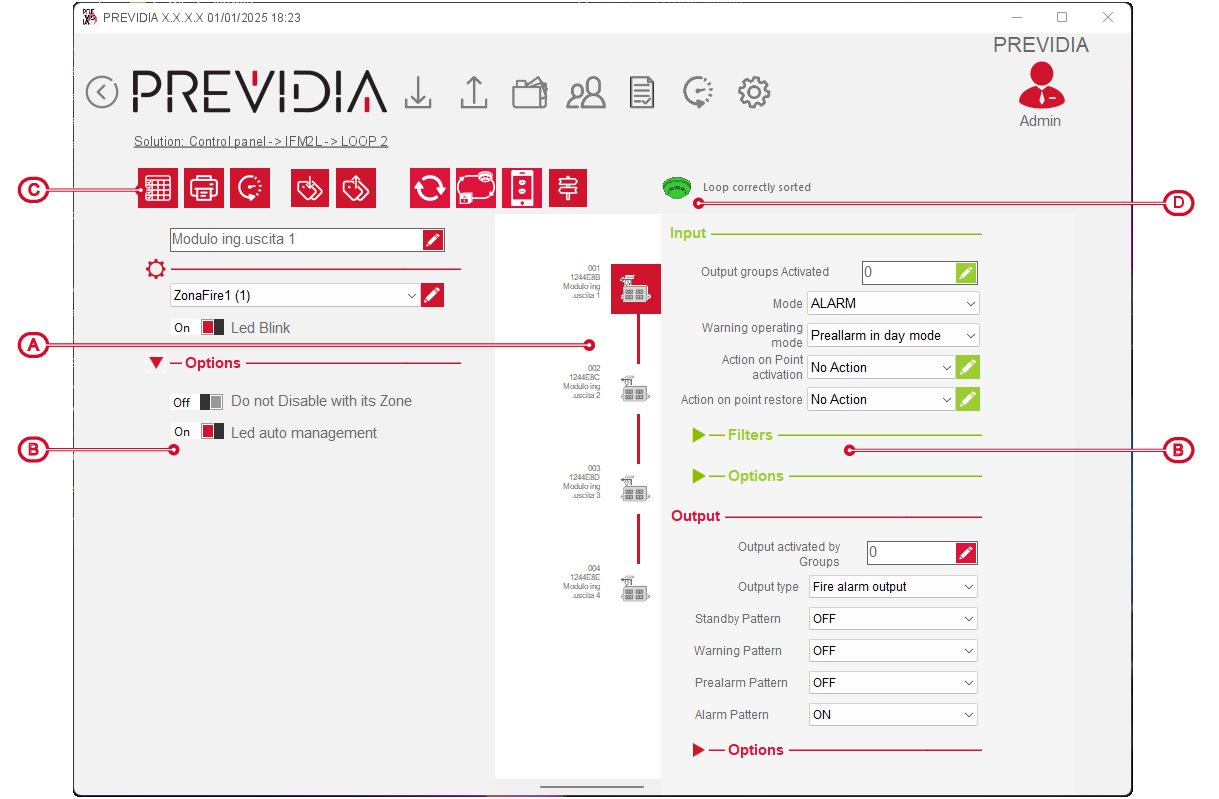
The middle section shows all the devices connected to the loop and all their details.
The function buttons at the top, in addition to those common to various pages, allow you to manage the loop:
|
Real time |
|
By clicking on the button, a window appears where it is possible to select whether the software should monitor the entire loop or the individual selected device. |
|
Export labels |
|
By means of these two buttons it is possible to export the list of the labels of the devices connected to the loop to a “.csv” file. In this way the programmer can edit the texts in a way that is appropriate to the means at their disposal. |
|
Import labels |
|
Button to import the externally edited list of labels of the devices connected to the loop. |
|
Set logic addresses |
|
This command is valid only for Enea series devices which writes the logic addresses on the control panel. |
|
Update devices |
|
Button to start one of the following procedures:
|
|
“Class” function |
|
Button to start the “Class” function to support the operations of addressing, replacement or expansion of the loops created with Inim Electronics devices. |
|
Change logical address |
|
After selecting a device, it is possible to use this button to change its logical address. Once the choice is made and confirmation given, the software changes the address in the PC configuration and connects to the control panel by changing the address also in the control panel configuration and in the memory of the device itself. Warning Care must be taken to ensure that communication is operational to avoid differences between the configuration content on the PC and the addresses actually set on the devices. Moreover, care must also be taken when changing the logical addresses of devices since any cause and effect configurations that target the logical address of the device may remain ineffective or refer to the wrong device. |