Programming of the Previdia control panel
By selecting from the initial page the Previdia control panel model, you access the respective programming section.
After having correctly set the communication channel in the settings section, it is possible to read the data from a control panel via the "Read” button. The software acquires all the information from the selected control panel and then displays the detected hardware configuration. This display will vary depending on the control panel model being configured:
for Previdia Max and Previdia Ultra
|
|
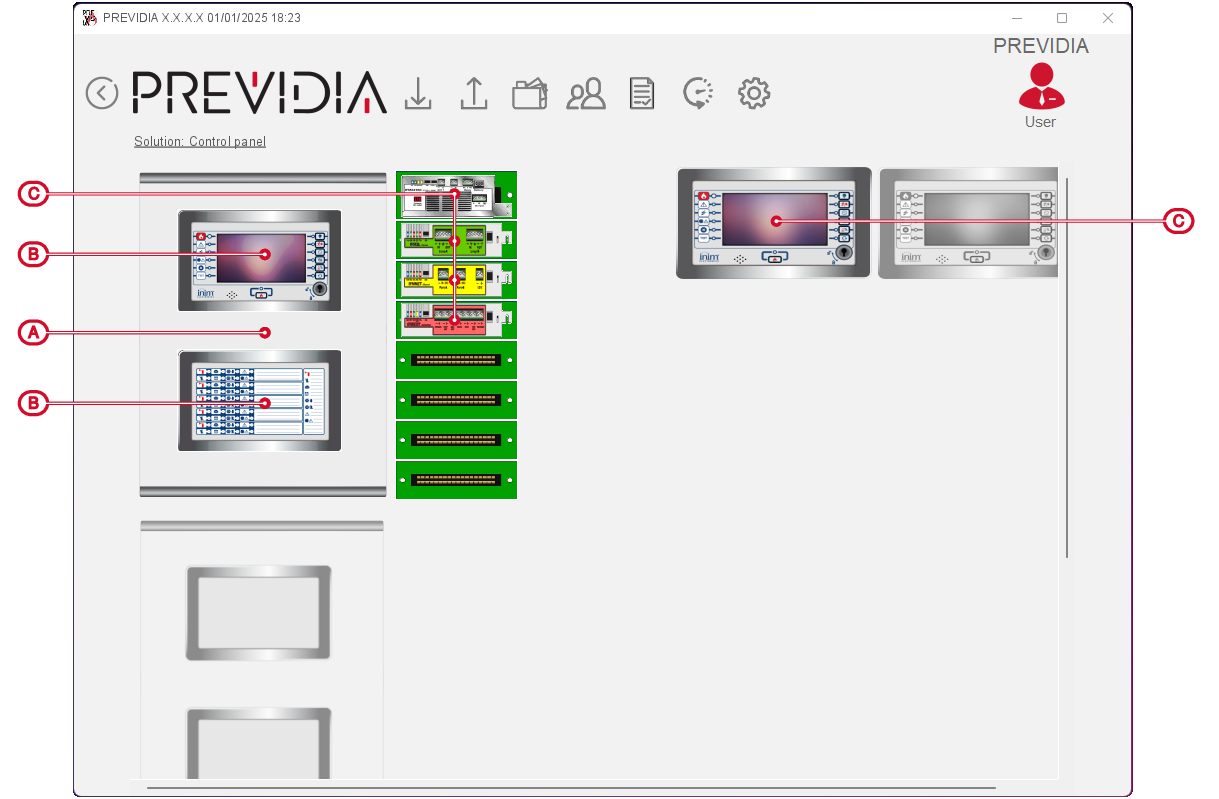
The software shows the cabinet (or cabinets in the case of a multi-cabinet control panel) with a graphic layout of the CAN drive bar with next to it the various modules installed inside. If present, the repeaters in the configuration are also listed on the right.
|
|
In the case of solutions read from the control panel, the software shows us the modules installed in the control panel and places the relative serial number next to each internal module. The colour of the string thus reported shows the attribution of the module to the system:
|

By selecting each of the modules, whether internal and front plate, you access the specific page of the module, with the parameters of the specific functions or connections that the module provides to the control panel.
By right-clicking on one of these modules, a menu opens to open the programming section or to delete the module from the configuration.
To access the configuration of the control panel parameters and its logical functions for the fire prevention system, you must click on the FPMCPU CPU front-plate module. For the logical functions of the voice emergency system, the FPAMIAS voice module must be selected.
for Previdia Compact and Previdia Micro
|
|
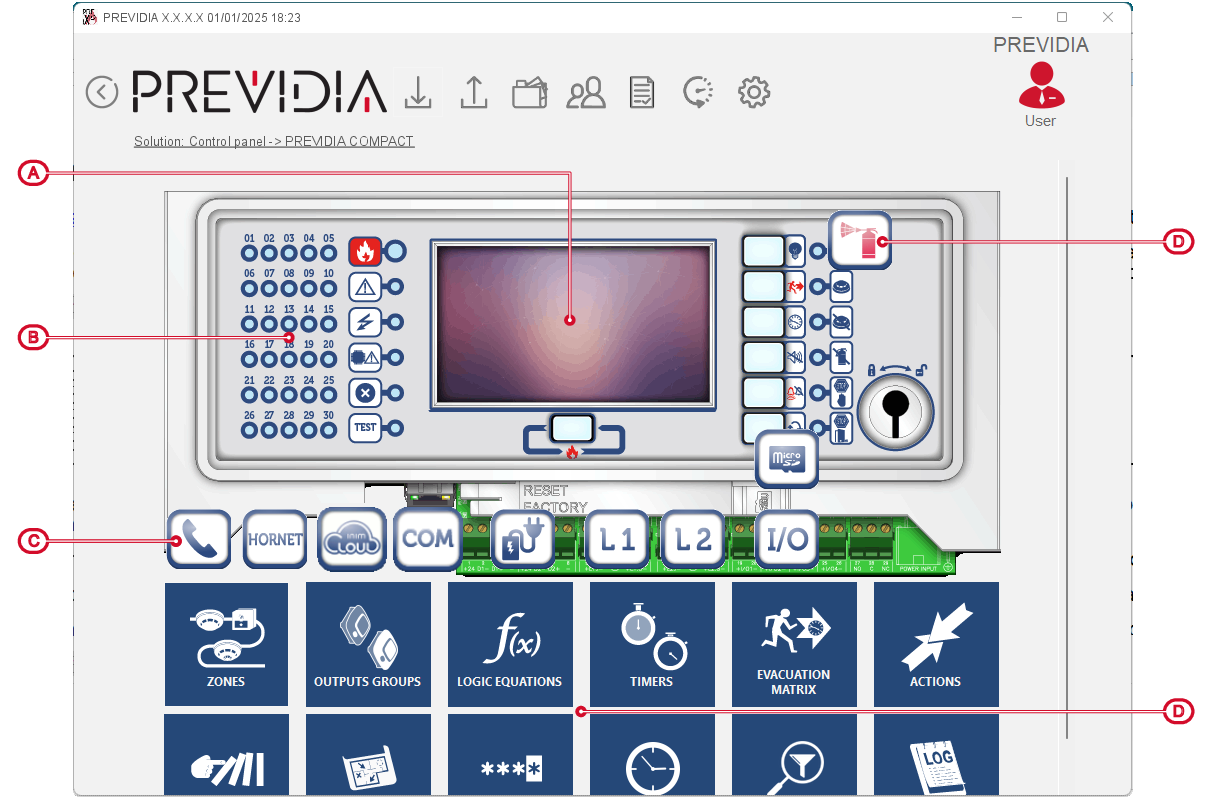
The software displays a view of the front plate of the control panel. Along with this, there are buttons that represent the connections of the control panel and its functions and give access to specific programming.
By selecting the display you access the configuration page of the control panel parameters.