Fire system actions
The actions are a sequence of operations the control panel must perform when certain situations occur. The actions, when invoked, influence the status of the control panel or one of its elements.

Accessing the control panel programming level, provides the button for the programming of the actions. In this section you can view and set up to 100 actions:
|
|
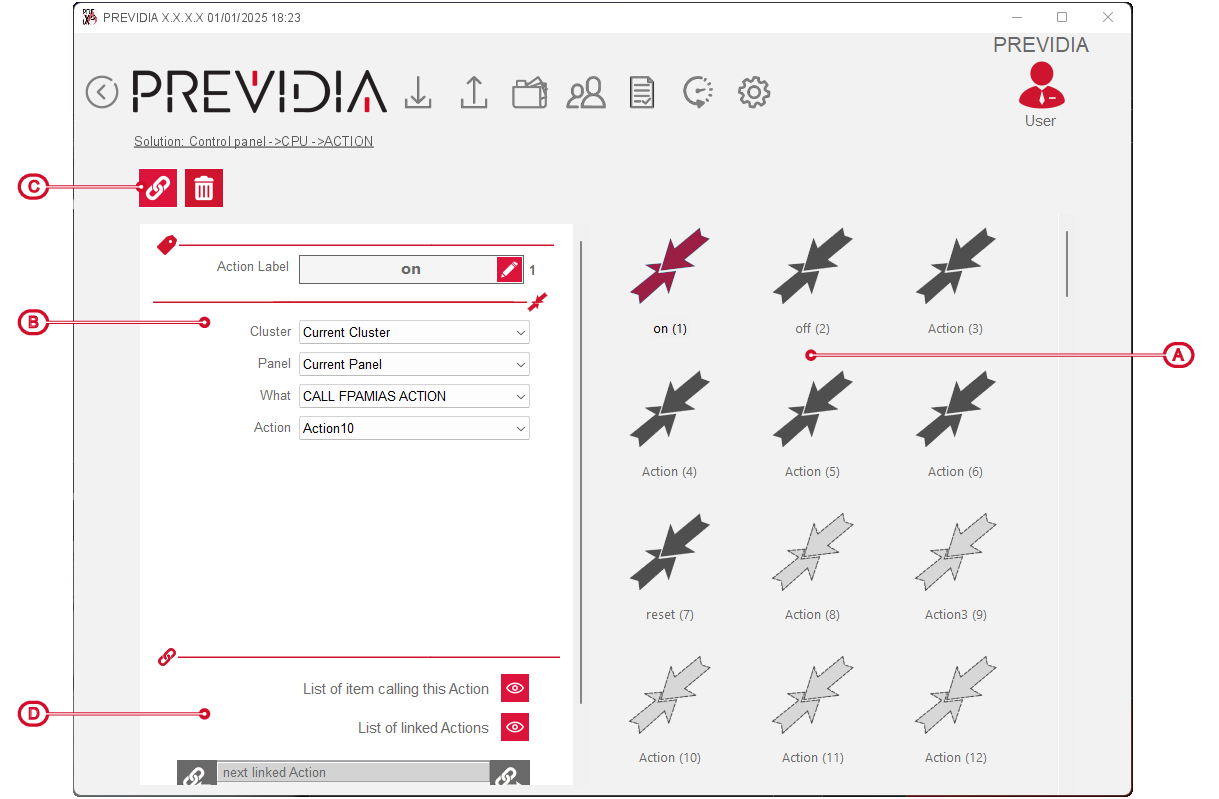
The definition of an action depends on the following programming parameters:
-
Label – 20 character string that the control panel will use to identify the action.
-
Cluster, Control panel – fields of the cluster and control panel subject of the selected action.
-
What – field relating to the operation the action must perform.
Depending on the option selected, you have different parameters:-
Enable / Disable – this action enables or disables a system element (zone, point, group, timer, etc.) depending on the value assigned to the selectors that appear below.
Disabling can be permanent or for a specified period of time starting from the start of the action. -
Mute sounder – allows you to mute or reactivate alarm signals (all those outputs classified as “fire alarm” output type).
Simulates the mute button on the front plate. -
Reset – allows you to reset the control panel.
Simulates the reset button on the front plate. -
Log – makes a record in the events log.
-
Set sensitivity – relative to a specific point indicated in the successive selectors.
-
Set output status – relative to a specific output, as set in the successive selectors.
-
Activate investigate – activates the investigate time if a pre-alarm is in progress.
Simulates the investigate button on the front plate. -
Evacuation – activates the evacuation procedure.
Simulates the evacuation button on the front plate. -
Mute buzzer – simulates the mute button on the front plate.
-
Restore monitor – restores the “monitor active” status of a specific zone or a specific input.
By setting a series of inputs as “monitor” and “non-resettable” it is possible to activate signals in the control panel (monitor signals) which can then only be reset by invoking a “reset monitor” type action (or rearm). -
Change Day/Night – simulates pressing the day/night icon on the display status bar.
-
Change control panel language – changes from the primary language to the secondary language if set when the control panel is first activated.
Simulates pressing the change language icon on the display status bar. -
Go to the point menu – the control panel display shows the management page of the device indicated in the following selectors.
This function is particularly useful when you want to retrieve, by means of a button on the display or by activating an input, the visualization of the status and real-time value of a specific gas detector. -
Start/Stop test – activate/reset the “Walk test” mode on a specific zone.
This can be used to provide a simple procedure that allows the user to test periodically a specific partition autonomously. -
Telephone Action – action that depends on the contact type specified below (SIA-IP, Contact-ID, voice or SMS). For Previdia Compact and Previdia Micro only.
-
Action on IFMDIAL – action that recalls one of the actions programmed for the IFMDIAL module, with the parameters specified below. For Previdia Max and Previdia Ultra only.
-
Action on IFMLAN – action that recalls one of the actions programmed for the IFMLAN module, with the parameters specified below. For Previdia Max and Previdia Ultra only.
-
Recall action of FPAMIAS – action that recalls one of the actions programmed for the voice emergency system via the FPAMIAS module, with the parameters specified below. For Previdia Max and Previdia Ultra only.
-
Change counter – changes the specified counter with the action selected below (increase or decrease by 1, reset to 0).
-
-
List of objects that recall actions – button that opens a window showing the system objects to which the selected action is associated.



The software also allows you to set actions as a consequence of other actions. The operation of linking actions is possible through the following buttons:
|
Link |
|
Button with which you can link another action from those configured to the selected action via a window containing a list. |
|
Next linked action |
Field showing the linked action and what happens to the selected one. |
|
|
|
|
Buttons to navigate among the linked actions. |
|
List of linked actions |
|
Button that opens a window showing all the actions linked to the selected action. |